Hidden from every screen-recording tool
CodeSage Pro uses NSWindow.sharingType = .none — a macOS API that prevents the window from appearing in any screen capture, recording, or broadcast.
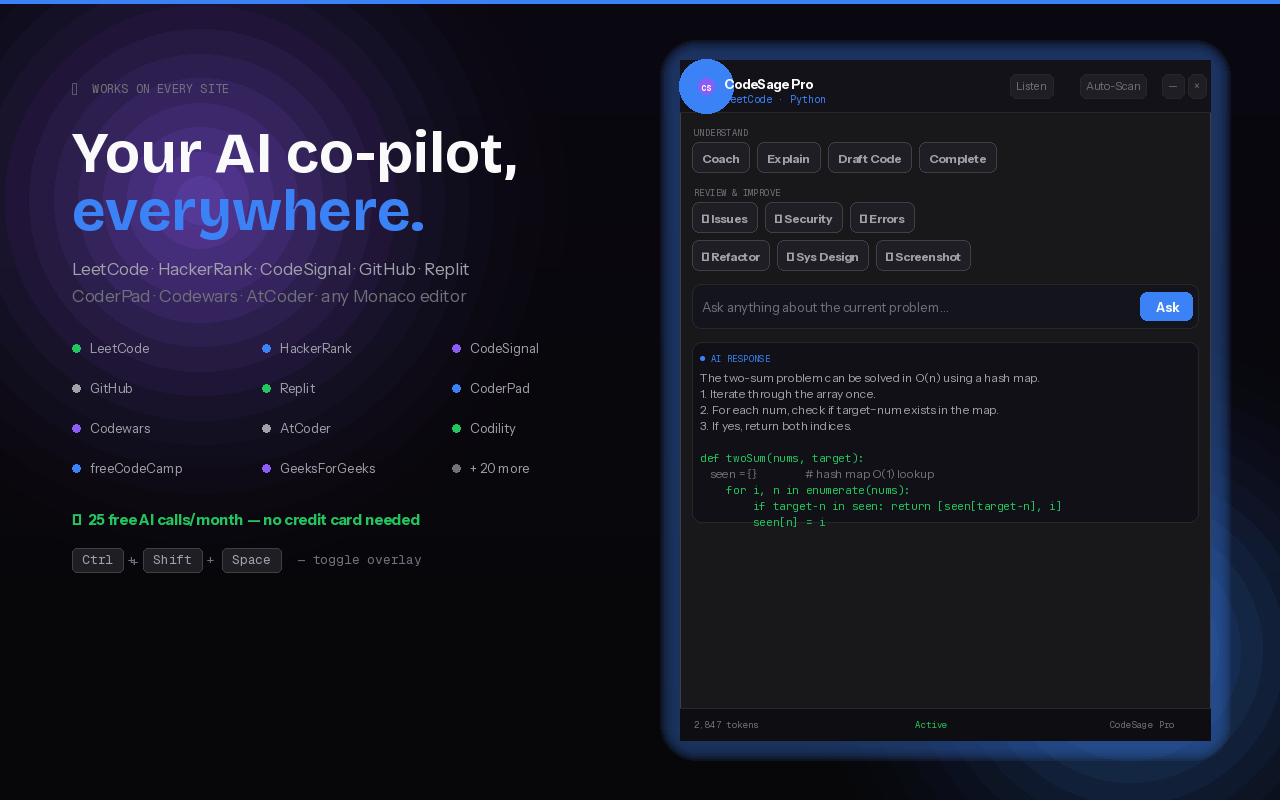
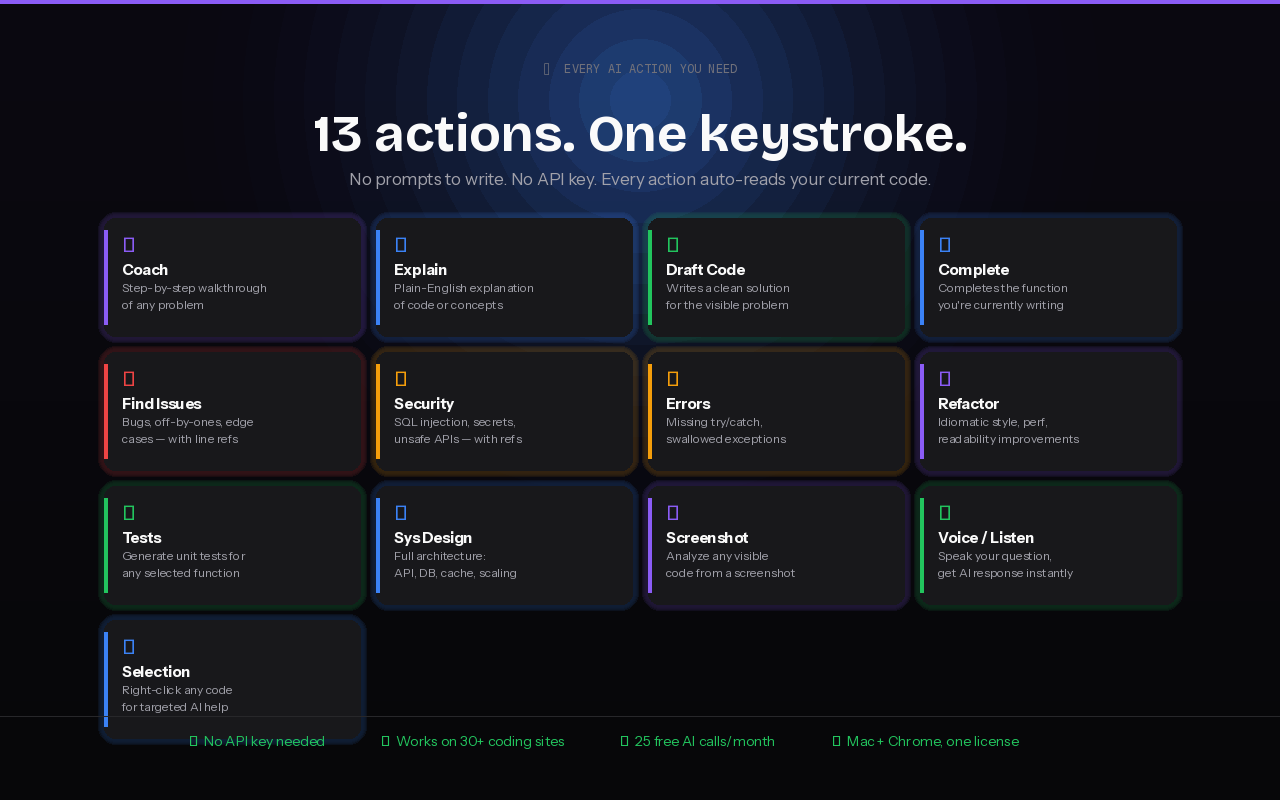
What you'll have after installing
Install in 6 steps
Takes about 2 minutes from start to first AI response.
Download & Move to Applications
Download the DMG file, open it, then drag CodeSage Pro into your Applications folder before doing anything else.
macOS security rules only apply to apps in your Applications folder. If you run CodeSage Pro directly from the DMG (the disk image window), the security bypass commands below won't work and the app will fail to open.
- 1Open the downloaded .dmg file — a window appears
- 2Drag the CodeSage Pro icon into the Applications folder shown in the window
- 3Wait for the copy to finish, then eject the disk image
macOS 13+ · Apple Silicon · <5 MB
Bypass macOS Security (One-Time)
Because CodeSage Pro is distributed outside the Mac App Store, macOS Gatekeeper shows a warning the first time you open it. The app is completely safe — pick the method that suits you:
Make sure you've already dragged CodeSage Pro to your Applications folder (Step 1 above), then run this command:
xattr -cr /Applications/CodeSage\ Pro.app && open /Applications/CodeSage\ Pro.app
Open Terminal with ⌘ Space → type Terminal → Enter. Paste the command and press Enter. The app opens automatically — this is a one-time step.
-
Finder → Applications → double-click CodeSage Pro
You'll see the "damaged" error — expected. Click Cancel. - Apple menu → System Settings → left sidebar: Privacy & Security
- Scroll all the way to the bottom to the Security section
- Find: "CodeSage Pro was blocked…" → click "Open Anyway"
- Enter your Mac password → click "Open" → app launches ✓
Where to find "Open Anyway" in System Settings:
- Finder → Applications → find CodeSage Pro
- Right-click the app (or Ctrl+Click)
- Choose "Open" from the context menu
- In the dialog that appears, click "Open" again
If the error says "damaged" (not just "unverified developer"), use the Terminal method instead.
Grant Screen Recording Permission
CodeSage Pro needs Screen Recording to read your screen for AI analysis. This is a 3-part process — each part takes about 10 seconds.
The first time you press ⌘⇧S (Capture), macOS shows a permission dialog. Click "Open System Settings" to go directly to the right page.
Find CodeSage Pro in the Screen Recording list and toggle it ON.
macOS caches the old "denied" state until the app fully restarts. After toggling ON, you must quit and relaunch CodeSage Pro.
After relaunch, press ⌘⇧S — screen capture will work immediately.
Enable Voice Features (Optional)
Want to ask questions by voice during interviews? Enable two more permissions in System Settings → Privacy & Security:
Sign In & Activate
Click the CodeSage Pro icon in your menu bar → Settings. Sign in with your BuildPilot Labs account or paste your license key.
Your license key is on your Account page. Free accounts get 10 AI calls/month — upgrade to Pro for unlimited.
Learn the Hotkeys
CodeSage Pro lives in your menu bar and responds to global shortcuts — no window switching needed. ⌘⇧Space is your panic key: one press shows the overlay, another press hides it instantly.
Ready to ace your next interview?
Start free with 10 AI calls/month. No credit card needed. Upgrade anytime.